API Key Generation
Generate API credentials from the Onmeta dashboard to authenticate your widget integration.
Accessing API Setup
After logging into the dashboard, navigate to the Setup section to view your API credentials.
Quick Access
Your API credentials are displayed in the Setup section of your dashboard after registration.
Navigation Path:
Dashboard → Setup → API's Setup
API Credentials Display
In the API Setup section, your credentials are displayed as follows:
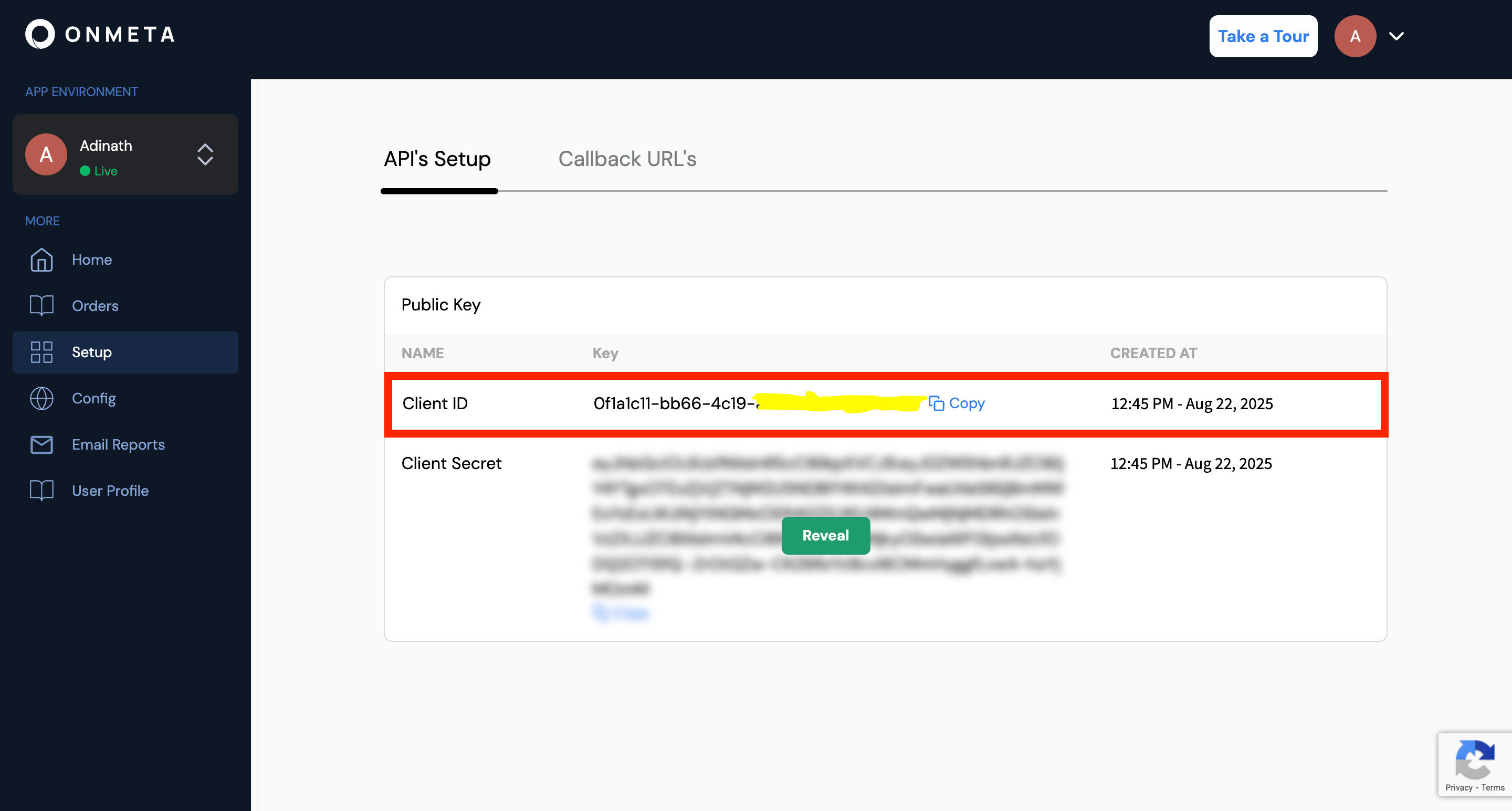
The Client ID value is your API key.
Using Your API Key
Include your API key when initializing the Onmeta Widget:
<script>
  let createWidget = new onMetaWidget({
    elementId: "widget",
    apiKey: "Of1a1cxxxxxxxxxxxxxxxxxxxxxxxxxxxxxxxx", // Your API key here
    environment: "staging"
  });
  createWidget.init();
</script>
Security Best Practices
API Key Security
Follow these security guidelines:
- Never commit API keys to public repositories (GitHub, GitLab, etc.)
- Use environment variables to store API keys in your application
- Don't share keys in screenshots, documentation, or support tickets
Production API Key
To use your API key in the production environment:
- Register a separate account on the production dashboard: dashboard.onmeta.in
- Complete KYB verification for production access
- Retrieve your production API key from the production dashboard
- Update your widget configuration with the production API key and set
environment: "production"
Next Steps
After generating your API key, proceed to widget integration:
Widget Creation & Integration - Embed the widget in your application